LinkedIn and HubSpot: How to Pipe LinkedIn Leads Directly into HubSpot CRM (Step-by-Step)
Last updated: May 2026. To connect LinkedIn to HubSpot, navigate to Marketing > Ads > LinkedIn in your HubSpot portal, click Connect account, authorize with Account Manager permissions, then enable Lead Syncing to map your LinkedIn Lead Gen Form fields directly to HubSpot contact properties. This native integration eliminates manual CSV exports and delivers leads to your CRM in under 15 minutes.
There is a critical moment between a prospect filling out your LinkedIn Lead Gen Form and your sales team’s first touchpoint. That gap, whether it is minutes or days, has a dramatic impact on conversion rates and revenue potential. Research shows that responding to leads within five minutes increases conversion rates by 900% compared to waiting 30 minutes (InsideSales, 2023).
Every hour that passes without action on a fresh lead drops your conversion probability significantly. Yet most B2B marketing teams still rely on manual CSV exports, which delay speed-to-lead, increase costs, and completely break attribution tracking. According to HubSpot’s 2024 State of Marketing Report, companies using automated lead syncing see 23% higher conversion rates than those using manual processes (HubSpot, 2024).
The solution? A proper LinkedIn-HubSpot integration that eliminates these gaps completely.
With HubSpot’s enhanced native integration now supporting both LinkedIn’s Lead Sync API and Conversions API, you can create a zero-touch lead pipeline and closed-loop reporting system, no development resources required.
Let me guide you through the exact steps to set this up, address common integration challenges, and utilize the bidirectional data flow to optimize your LinkedIn ad performance.
How to Connect LinkedIn to HubSpot: Quick-Start Summary
Here is the complete process to connect LinkedIn to HubSpot in five steps:
- Connect your LinkedIn Ads account to HubSpot via Marketing > Ads > LinkedIn with Account Manager permissions
- Enable Lead Syncing and map each LinkedIn form field to corresponding HubSpot contact properties
- Build instant workflows that trigger when LinkedIn leads sync, including deal creation and sales notifications
- Configure Conversions API to push lifecycle events back to LinkedIn for closed-loop attribution
- Create attribution reports connecting ad spend directly to closed-won revenue
This integration typically takes 30-45 minutes to complete and requires no coding or developer resources.
LinkedIn Sales Navigator is a powerful tool designed to help sales teams streamline their sales process and improve customer relationships. By integrating LinkedIn Sales Navigator with HubSpot, businesses can leverage the capabilities of both platforms to enhance their sales, marketing, and customer relationship management efforts.
This integration enables sales teams to access valuable insights and data, allowing them to make more informed decisions and drive revenue growth. With LinkedIn Sales Navigator, sales teams can tap into the power of LinkedIn’s professional network, leveraging features such as LinkedIn profiles, shared connections, and LinkedIn ads with InMail to connect with potential customers and build meaningful relationships.
Prerequisites and Tool Checklist
Before diving into the step-by-step process, ensure you have access to these essentials:
- HubSpot Marketing Hub Professional or Enterprise license (required for the Ads integration tool)
- LinkedIn Ads Account Manager access (not just regular advertiser permissions)
- Named contact properties in HubSpot that match every LinkedIn form field you plan to collect
- Ad-blockers disabled during the setup process (these can interfere with OAuth authentication)
Additionally, ensure you have the necessary apps for the integration, such as those required for data synchronization and automated workflows.
With these elements ready, you are set to build a seamless data pipeline between LinkedIn and HubSpot.
Step 1: Connect LinkedIn Ads to HubSpot
The foundation of any successful integration starts with properly connecting your accounts. Here is how to establish this critical link:
- Log into your HubSpot portal and navigate to Marketing > Ads > LinkedIn
- Click the prominent Connect account button
- Verify your HubSpot user has publish rights to make this connection
- Ensure your LinkedIn user has Account Manager permissions (essential for API access) on your LinkedIn account
Troubleshooting tip: If you encounter OAuth errors during connection, clear your browser cache and cookies, then try again in an incognito or private window. LinkedIn’s authentication can sometimes be cached incorrectly.
A successful connection will display a confirmation toast notification. This initial step creates the foundation for all subsequent data sharing between platforms. Being connected facilitates seamless data sharing and integration, enabling you to leverage valuable insights and automate workflows effectively.
Step 2: Sync Lead Gen Forms
With the account connection established, it is time to configure the actual lead synchronization:
- Within HubSpot’s Ads section, open the Lead Syncing tab
- Toggle Sync leads from LinkedIn to the ON position
- Select the LinkedIn Company Page(s) you want to sync leads from
- For each form you want to sync:
- Click the form name
- Select Map fields
- Use the dropdown menus to map each LinkedIn field to its corresponding HubSpot property
A CRM sync is crucial for maintaining continuous data updates, enabling you to prospect more effectively and measure the effectiveness of your campaigns through synchronized insights. For more on choosing between lead gen forms and landing pages, see our guide on LinkedIn Lead Gen Forms vs Landing Pages.
Important: If you are upgrading from the legacy integration, you will see a banner prompting you to authorize the new Lead Sync API. This is crucial for delivering leads in real-time and enhancing reliability.
Pro tip: When mapping email fields, you can map LinkedIn’s default “Email” or any custom “Work Email” field directly to HubSpot’s standard Email property. This resolves a common issue where personal emails from LinkedIn forms are stored in separate properties, fragmenting your contact records.
Custom Field Mapping Best Practices
For optimal data flow, consider these field mapping strategies:
- Job Title: Map to both the standard “Job Title” property and a custom “LinkedIn Job Title” property for historical tracking
- Company Size: Create a standardized picklist in HubSpot that matches LinkedIn’s ranges
- Industry: Consider normalizing LinkedIn’s industry categories to match your own segmentation
- Phone Number: Always map to the standard “Phone number” property rather than creating duplicates
Paying attention to details when mapping fields is crucial to ensure accurate and efficient data synchronization.
Once your fields are mapped, HubSpot will begin syncing leads as they come in. New form submissions will appear in HubSpot typically within 5-15 minutes, dramatically faster than manual exports.
Step 3: Build Instant Workflows
The real power of this integration lies in automating the actions that occur after a lead arrives. Here is how to build workflows that trigger immediately when LinkedIn leads sync:
- Go to Automation > Workflows > Create workflow
- Select From scratch
- For the enrollment trigger, select Form submission
- Wait for your LinkedIn forms to appear in the dropdown (this can take up to an hour after initial setup)
- Select the LinkedIn form(s) you want to trigger the workflow
Now, set up the actions that should happen automatically:
- If [LinkedIn form] is submitted
- Then create a deal in pipeline [Sales Pipeline] at stage [New]
- Then assign contact owner to [appropriate rep based on territory or rules]
- Then send Slack notification to #new-leads channel
- Then add to sequence [LinkedIn Lead Nurture]
- IF [Company Name] is empty, then create a task for the SDR to research company information
Be aware of the limitations of this integration, such as API call limits and unsupported data fields, which might restrict full functionality.
Advanced tip: Create different workflows for different LinkedIn form types. For example, a demo request form should trigger an immediate sales notification, while a content download form might trigger a nurture sequence instead.
This automation ensures no lead falls through the cracks, and every prospect receives the appropriate follow-up based on their engagement level and the information they have provided.
Step 4: Push Lifecycle Events Back via Conversions API
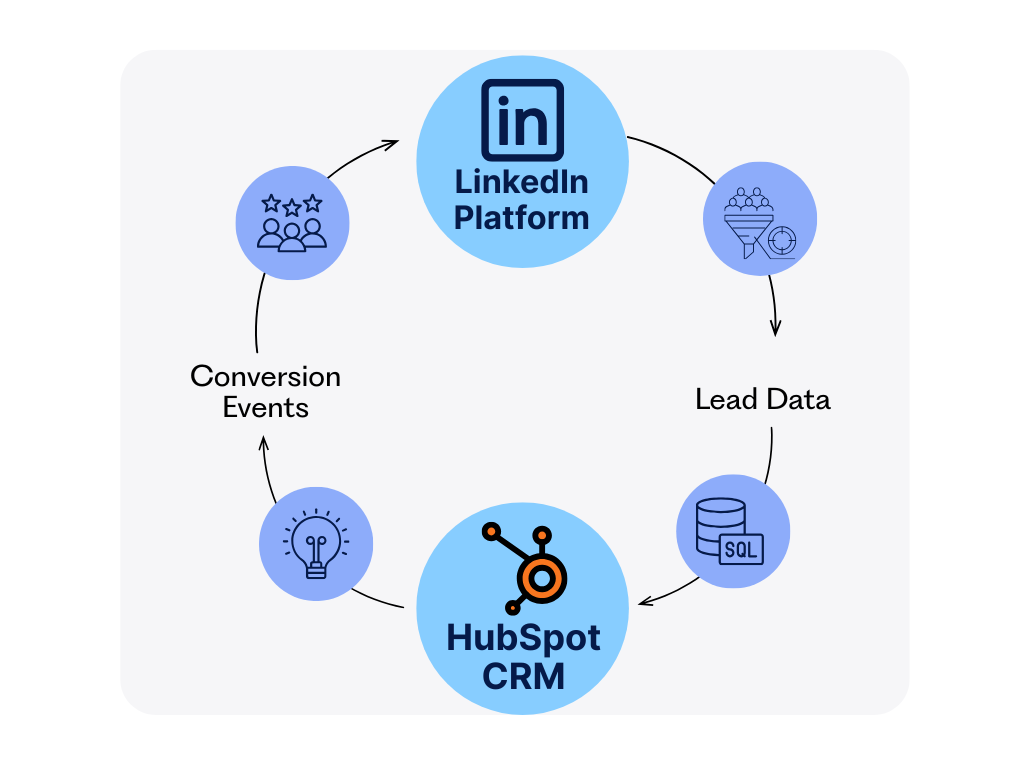
Here is where most integrations stop, but we are going to take it a step further by creating a bidirectional data flow that sends conversion events back to LinkedIn:
- In HubSpot, navigate to Ads > Create Event
- Select LinkedIn and choose your ad account
- For event type, select Lifecycle stage change
- Choose the specific transition (e.g., Lead to MQL, MQL to SQL, etc.)
This setup leverages the LinkedIn Conversions API to send server-to-server signals when important lifecycle events occur in your CRM. According to LinkedIn’s Marketing Solutions documentation, advertisers using offline conversion tracking see up to 20% improvement in campaign optimization accuracy (LinkedIn, 2024).
LinkedIn then uses this data to:
- Optimize ad delivery to users most likely to progress through your funnel
- Improve reporting by showing which campaigns generate quality leads, not just form fills
- Enhance bidding strategies based on actual pipeline progression
Optional enhancement: For deals closed via phone or offline channels, you can also set up offline conversion imports through either CSV uploads or partner API connections. This creates truly comprehensive closed-loop reporting.
Step 5: Reporting and Attribution
With both lead synchronization and conversion events flowing, you can now build meaningful attribution reports:
- In HubSpot Ads, use the Attribution report to connect ad spend directly to Closed-Won revenue
- Create a custom view showing Revenue by lifecycle stage and campaign
- Monitor key metrics like time-to-conversion and conversion rate by campaign
These reports can help optimize business operations and drive growth by providing insights into advertising ROI and streamlining sales processes. For benchmarks on what performance to expect, check our 2025 LinkedIn Ads Benchmarks for SaaS and Tech Marketers.
The most valuable view for SaaS companies is typically Cost per Acquired Customer, broken down by LinkedIn campaign type. This reveals which targeting approaches and creative strategies are driving actual revenue, not just engagement.
Industry benchmarks suggest that leads synced via API show 15-20% lower cost-per-acquisition after 30 days of optimization compared to manually imported leads (HubSpot, 2024). This improvement stems from both faster follow-up and more accurate conversion signals that feed LinkedIn’s algorithms.
Understanding HubSpot Contacts and Data Sync
HubSpot is an all-in-one marketing, sales, and customer service platform that helps businesses manage their contacts, leads, and customer relationships. The HubSpot CRM (Customer Relationship Management) system enables users to store and manage contact information, track interactions, and analyze sales performance.
When integrated with LinkedIn Sales Navigator, HubSpot contacts can be synced with LinkedIn data, providing a more comprehensive view of each contact. This data sync enables businesses to access valuable insights, such as mutual connections, shared connections, and contact interactions, helping them to better understand their customers and tailor their sales and marketing efforts accordingly.
Adding New Contacts to HubSpot
Adding new contacts to HubSpot is a straightforward process that can be completed manually or through integration with other platforms, such as LinkedIn. When a new contact is added to HubSpot, their information is stored in the CRM system, allowing businesses to track interactions, analyze sales performance, and personalize their marketing efforts.
With the LinkedIn Sales Navigator integration, new contacts can be automatically added to HubSpot, saving time and reducing the risk of data entry errors. This feature also enables businesses to access LinkedIn data, including LinkedIn profiles and shared connections, providing a more comprehensive view of each contact.
Managing LinkedIn Contacts
Managing LinkedIn contacts is a crucial component of any effective sales or marketing strategy. With LinkedIn Sales Navigator, businesses can manage their LinkedIn contacts more effectively, leveraging features such as contact tagging, notes, and reminders to stay organized and focused.
The integration with HubSpot also enables businesses to sync their LinkedIn contacts with their HubSpot CRM, providing a single, unified view of all their contacts. This enables sales teams to gain valuable insights, including contact interactions, shared connections, and mutual connections, which helps them build stronger relationships and drive revenue growth.
Troubleshooting and FAQs
Even with the best setup, you may encounter some challenges. Here are solutions to the most common issues:
| Issue | Likely Cause | Solution |
| LinkedIn form is not available in the workflow trigger | First sync still processing | Wait up to 2 hours; check Lead Sync status in HubSpot |
| Email addresses missing from synced contacts | Using default LinkedIn personal email field | Add a custom “Work Email” field to your form and map appropriately |
| Conversions not appearing in LinkedIn Campaign Manager | Event not set to ‘Active’ or wrong ad account selected | Verify event status in both HubSpot and LinkedIn interfaces |
| Duplicate contacts being created | Multiple email fields mapped incorrectly | Map all email fields to the standard Email property in HubSpot |
| API connection errors | Permission issues or expired tokens | Re-authorize the connection and check user permission levels |
Common Questions
Q: How often do LinkedIn leads sync to HubSpot?
A: With the new Lead Sync API, leads typically appear in HubSpot within 5-15 minutes of form submission.
Q: Can I sync historical leads?
A: The integration will only sync new leads going forward from the time of setup. Historical leads need to be imported manually.
Q: Do I need a developer to set this up?
A: No, the entire process can be completed through the HubSpot and LinkedIn interfaces without any coding required.
Q: What happens if a lead already exists in HubSpot?
A: The integration will update the existing contact record rather than creating a duplicate, assuming the email address matches.
Compliance and Best-Practice Checklist
As you implement this integration, ensure you are following these compliance and optimization best practices:
- Consent text on Lead Gen Forms complies with CASL, CAN-SPAM, and GDPR requirements
- UTM parameters are consistent across campaign names for accurate Looker Studio reporting
- Quarterly audits scheduled to re-authorize API tokens and refresh field mappings
- Documentation maintained for which forms are synced and their corresponding workflows
- Alert system established to notify your team if the integration stops working
Legal consideration: Always ensure your privacy policy explicitly mentions data sharing between LinkedIn and your CRM system. This transparency is not just a best practice, it is increasingly a legal requirement under GDPR Article 13 and similar regulations (European Commission, 2024).
Maximizing ROI from Your LinkedIn-HubSpot Integration
With the technical setup complete, here are strategic approaches to maximize the return on this integration:
1. Speed-to-Lead Optimization
The most immediate benefit of this integration is dramatically improved speed-to-lead. Research from Lead Response Management shows that contacting a lead within 5 minutes of form submission increases conversion rates by 900% compared to waiting 30 minutes (Lead Response Management, 2023).
Leverage this advantage by:
- Setting up Slack or SMS notifications for high-intent form submissions
- Creating lead scoring rules to prioritize follow-up
- Implementing chat routing rules for immediate engagement
2. Audience Segmentation
The bidirectional data flow allows you to create highly targeted LinkedIn audiences based on HubSpot data:
- Build Matched Audiences of contacts who reached MQL but not SQL
- Create lookalike audiences based on your best-converting customers
- Exclude current customers from acquisition campaigns
For advanced targeting strategies, explore our comprehensive guide on Every LinkedIn Ads Targeting Option Explained.
3. Campaign Optimization
Use the conversion data flowing back to LinkedIn to optimize your campaigns:
- Shift budget toward campaigns generating quality pipeline, not just lead volume
- Adjust targeting based on which audience segments progress further in your funnel
- Refine creative using insights from lead quality data
For example, if Campaign A generates twice the leads of Campaign B, but Campaign B’s leads convert to customers at 3x the rate, the integration reveals where to invest your budget.
Conclusion and Next Steps
The LinkedIn-HubSpot integration we have outlined creates a zero-touch lead capture system and closed-loop attribution model that transforms how B2B marketing teams operate. Rather than manually exporting CSVs and piecing together fragmented data, you now have a seamless pipeline from ad impression to closed revenue.
This approach not only saves countless hours of manual work but creates a strategic advantage in three critical areas:
- Speed-to-lead that dramatically improves conversion rates
- Data accuracy that eliminates human error in lead processing
- Attribution clarity that shows exactly which campaigns drive revenue
Ready to implement this integration but want expert guidance? Contact NAV43’s HubSpot implementation team for a personalized walkthrough of your specific setup requirements.
